Skip to content

The AndroidSync feature tour · Version 1.1

Everything connects.
See how it works.

From a quick reply to a folder full of files. Explore 20 ways Android and Mac work together, through real screens from the apps.

Encrypted file transfer in progress on the running Mac app.
Encrypted file transfer in progress on the running Mac app. Click to enlarge ↗
Real apps. Real screenshots.

Private details are blurred using the app’s Privacy Mode.

01

Keep the conversation close.

Your Android conversations, with room to work on Mac.

Notifications

Your phone alerts. A proper Mac inbox.

Read and search Android notifications without reaching for your phone. Keep useful alerts together while the rest of your work stays in view.

  • Search across your notification history.
  • Reply when the sending app provides a supported text reply action.
  • Dismiss an item locally or explicitly dismiss it on the phone.
  • Exclude apps you do not want in your inbox.

Notification access on Android is required. Mac history is encrypted and expires after seven days.
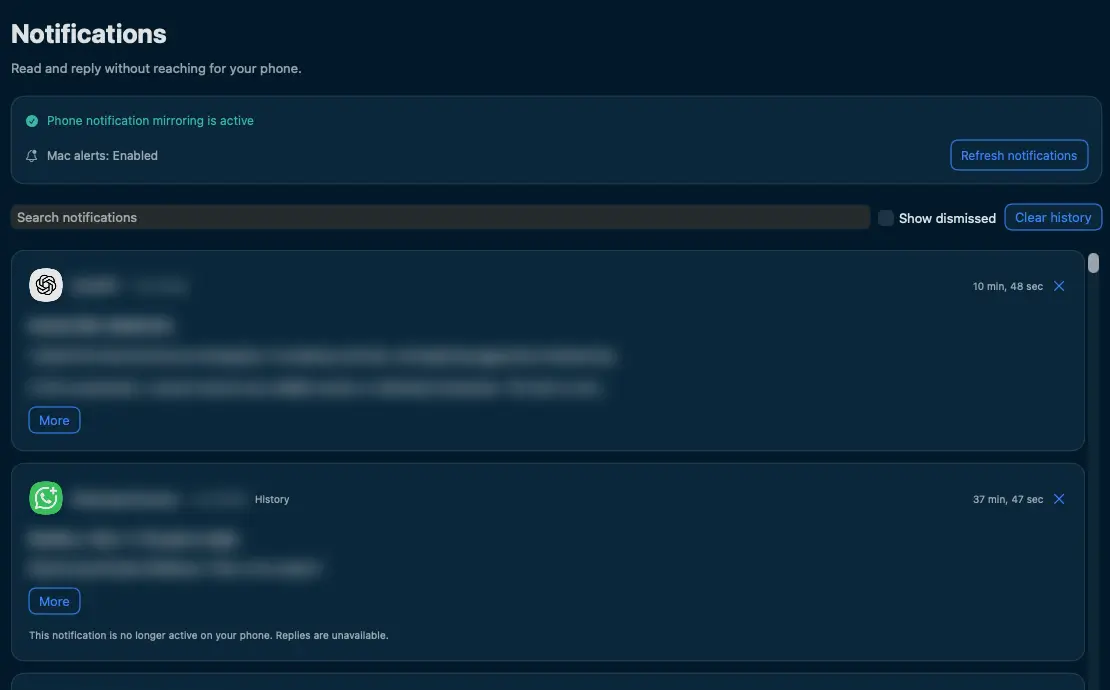
The searchable notification inbox on macOS, with sensitive previews blurred.
The searchable notification inbox on macOS, with sensitive previews blurred. Click to enlarge ↗

Carrier SMS

A keyboard for longer conversations.

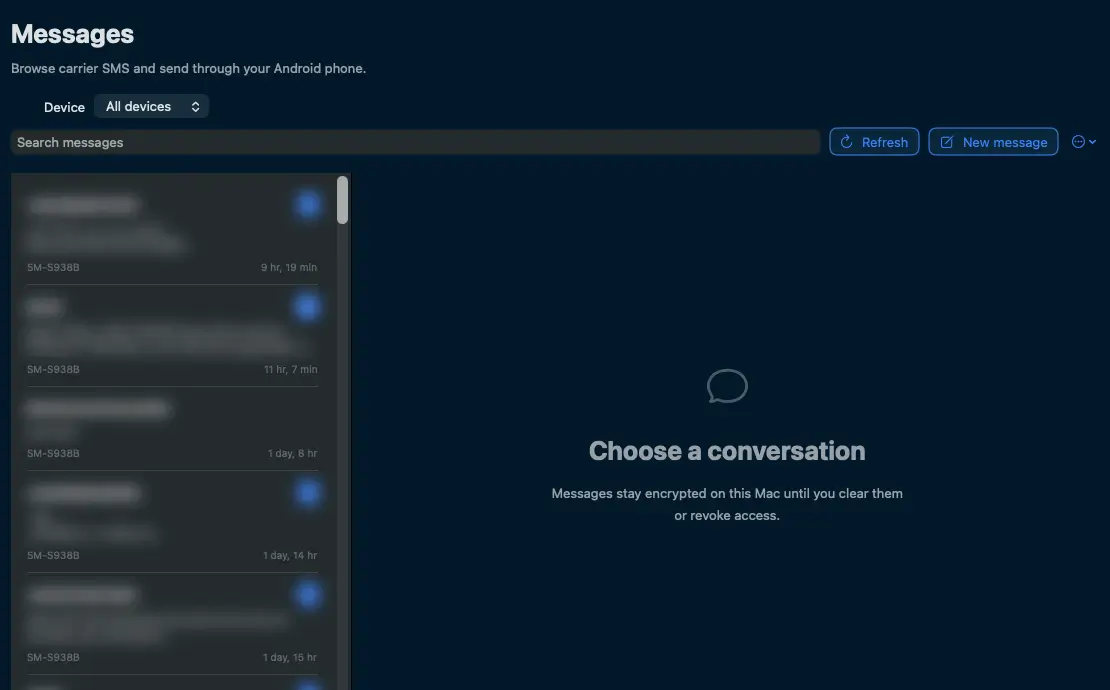
Browse carrier SMS threads and compose a message through your connected Android phone. Choose the device that should send it.

  • Search conversations and open a thread.
  • Start a new message from Mac.
  • Keep cached messages encrypted locally.

Requires the full Android variant, SMS permissions and the Messages grant for this Mac. MMS and RCS are not supported.

The Mac Messages view with conversation search and the new message control.
The Mac Messages view with conversation search and the new message control. Click to enlarge ↗

Contacts

Find the person. Choose the next step.

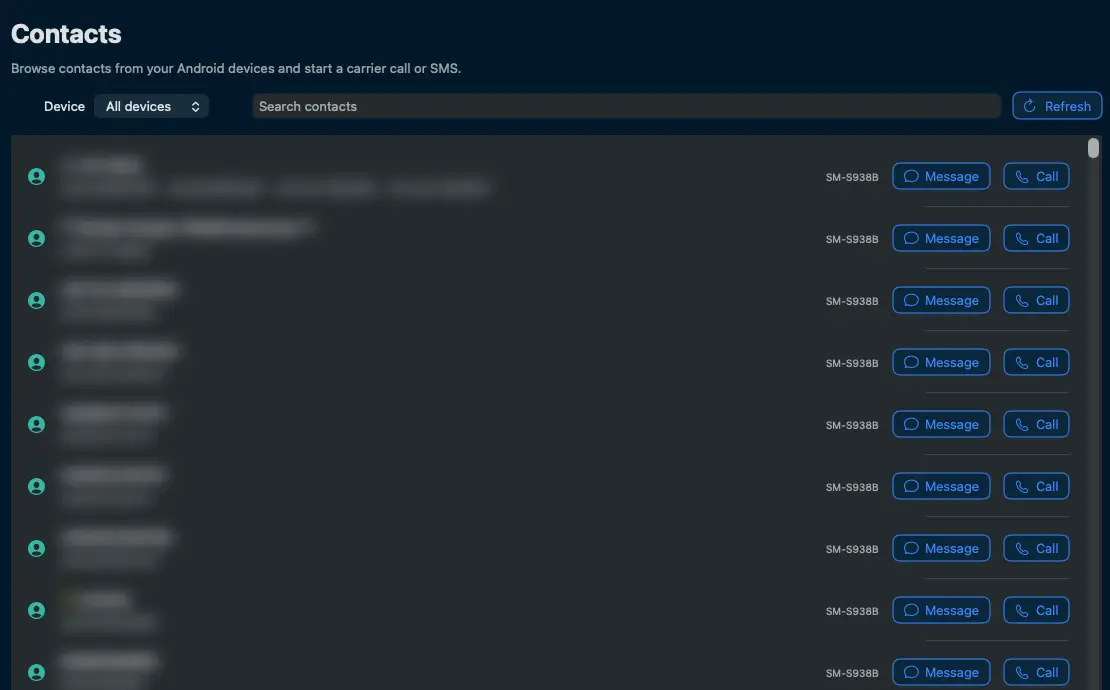
Browse the contacts shared by your Android device, then start a message or a call from the same view.

  • Search contacts by name or number.
  • Choose a connected Android device.
  • Refresh the list when your phone contacts change.

Requires Contacts permission and Messages access for the paired Mac. Call and SMS actions use your phone.

Contacts on Mac with separate Message and Call actions.
Contacts on Mac with separate Message and Call actions. Click to enlarge ↗

Call history

See who called, and when.

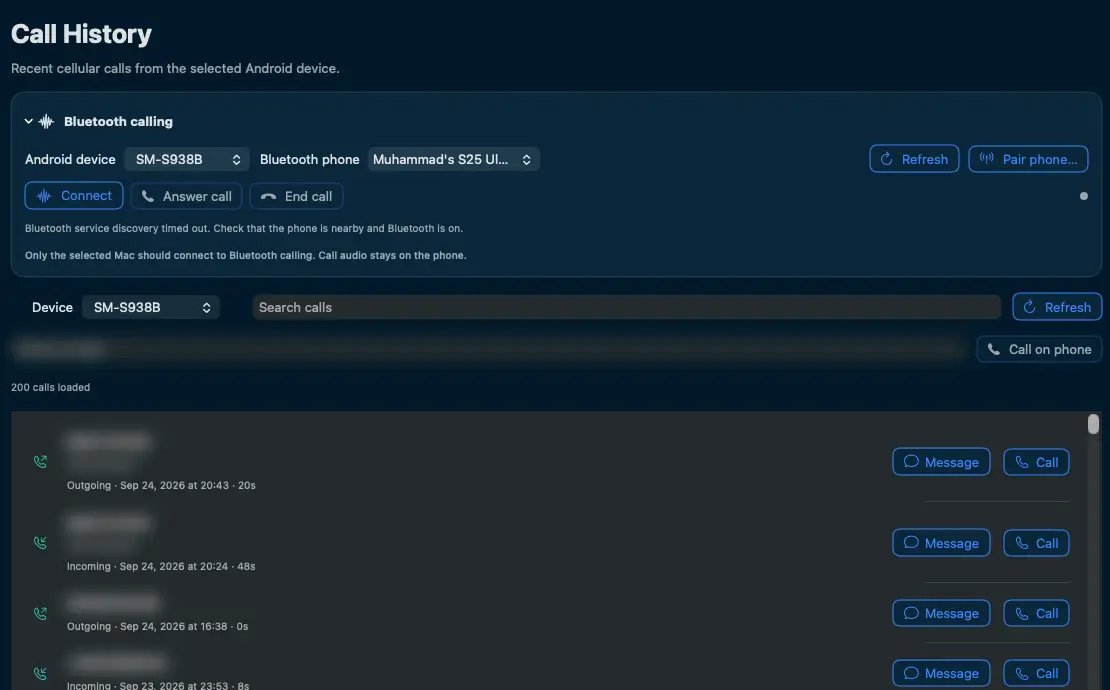
Bring recent incoming, outgoing and missed cellular calls into a searchable Mac view.

  • Filter the history by device.
  • See call direction, time and duration.
  • Start a call or message from an entry.
  • Use supported call controls when the phone exposes them.

Requires the full Android variant and phone permissions. Call audio stays on the phone. Bluetooth and call controls vary by device.

The populated call history view on macOS with private details blurred.
The populated call history view on macOS with private details blurred. Click to enlarge ↗
02

A little less copying twice.

Text, links and images, with the controls to keep them useful.

Clipboard history

Find the thing you copied earlier.

Keep a searchable clipboard history across your trusted devices. Switch between all devices and an individual source when you need a narrower view.

  • Copy text, links and supported images between Android and Mac.
  • Search old clips and pin useful items.
  • Pause sharing when you want a break.
  • Choose a per-device history quota on Mac.

Android restricts background clipboard reads. Capture while AndroidSync is visible, use Android Share, or use the available capture action.

Mac clipboard history showing device filters, search, pinning and storage quotas.
Mac clipboard history showing device filters, search, pinning and storage quotas. Click to enlarge ↗

Full clipboard preview

Give a long clip some room.

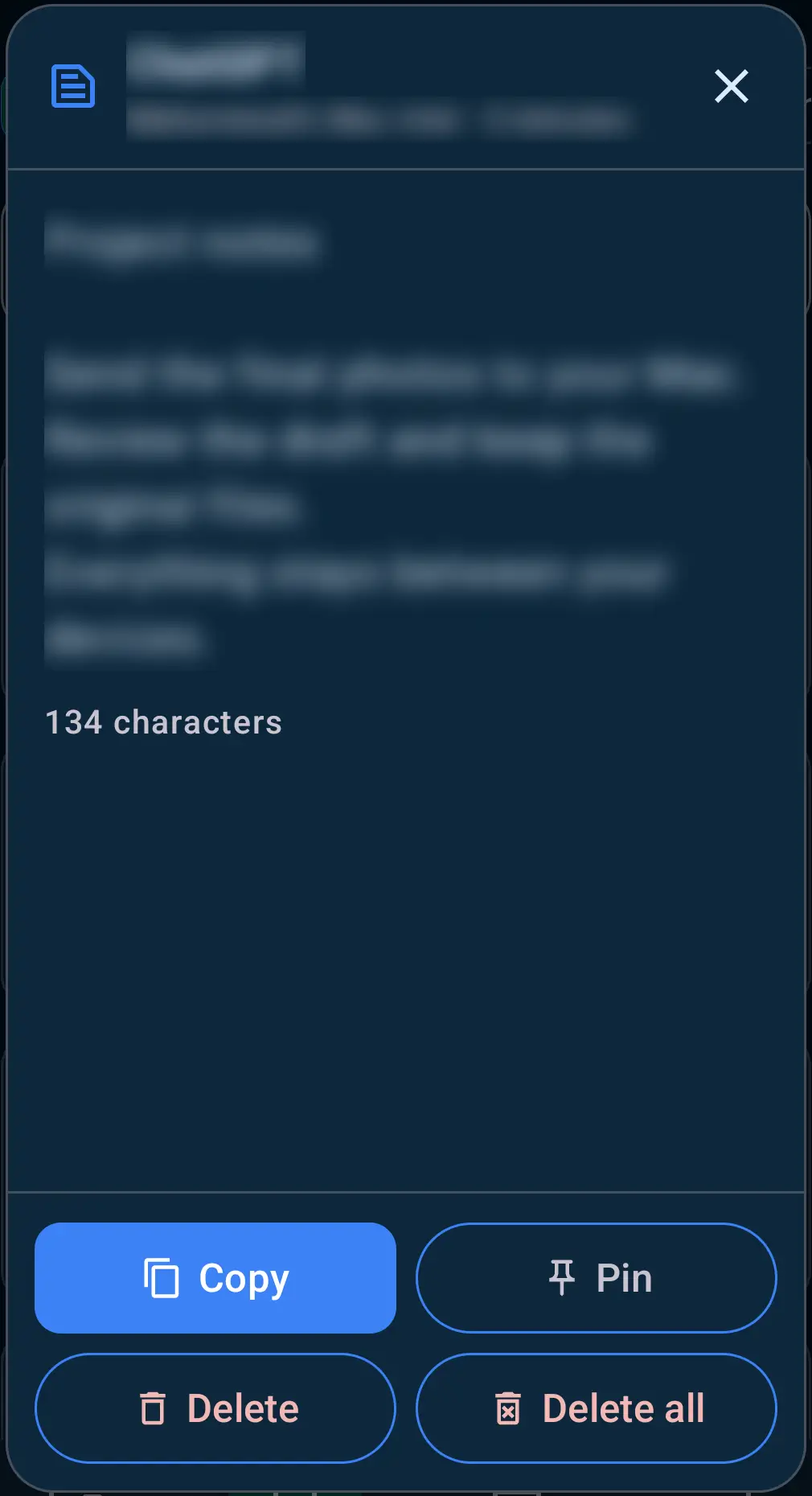
Open a clipboard item in its own Android popup. Review the full content before copying it or keeping it pinned.

  • Open an item with the preview button.
  • Copy or pin it from the popup.
  • Use the available delete actions to manage history.

Privacy Mode also blurs supported popup content. Screenshots here show the app with that mode enabled.

The full Android clipboard popup with Copy, Pin and deletion controls.
The full Android clipboard popup with Copy, Pin and deletion controls. Click to enlarge ↗

History controls

Keep the useful. Clear the rest.

Control clipboard storage without losing your place. Device filters and a visible storage total make the history easier to manage.

  • Choose 256 MB, 1 GB or 2 GB per device on Mac.
  • Pin items you want to keep.
  • Copy a clip or open a saved link.
  • Delete selected content across currently trusted peers.

Older unpinned items are removed first when the quota is reached. Disconnected peers receive deletion events after reconnecting.

A close-up of clipboard device filters, storage quota and item controls.
A close-up of clipboard device filters, storage quota and item controls. Click to enlarge ↗
03

Your files. Ready on either device.

Original files, local transfers, and a clear view of what is happening.

Live file transfers

Watch your files arrive.

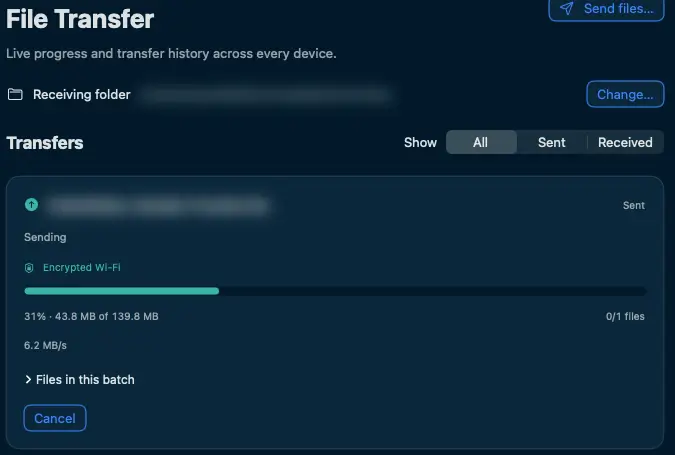
Send a batch between Android and Mac and follow its progress in the app. Version 1.1 streams file bytes directly over encrypted TLS by default.

  • See the current percentage, byte count and transfer rate.
  • Track the number of files in a batch.
  • Cancel a transfer when you need to.
  • Resume interrupted transfers from saved progress.

This is a real sample transfer captured in progress. The displayed speed is a moment in that transfer, not a performance guarantee.

A real encrypted file transfer at 31 percent, showing progress and a Cancel control.
A real encrypted file transfer at 31 percent, showing progress and a Cancel control. Click to enlarge ↗

Transfer history

Know what made it across.

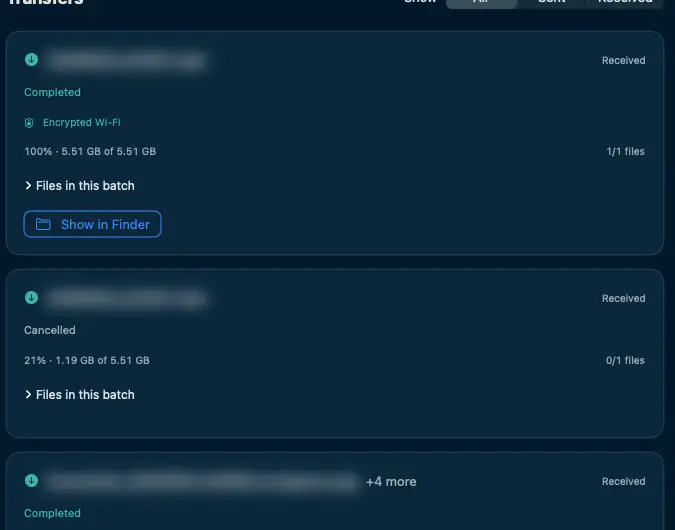
Keep sent and received batches in one place. Expand a batch to inspect its files, or open completed downloads in Finder.

  • Filter All, Sent and Received transfers.
  • See completed and canceled batches.
  • Verify received files with SHA-256 before they become available.

Received files are ordinary files in your chosen destination. Removing an app does not remove those files.

Transfer history showing completed and canceled file batches.
Transfer history showing completed and canceled file batches. Click to enlarge ↗

Send from Android

Your phone can start the handoff.

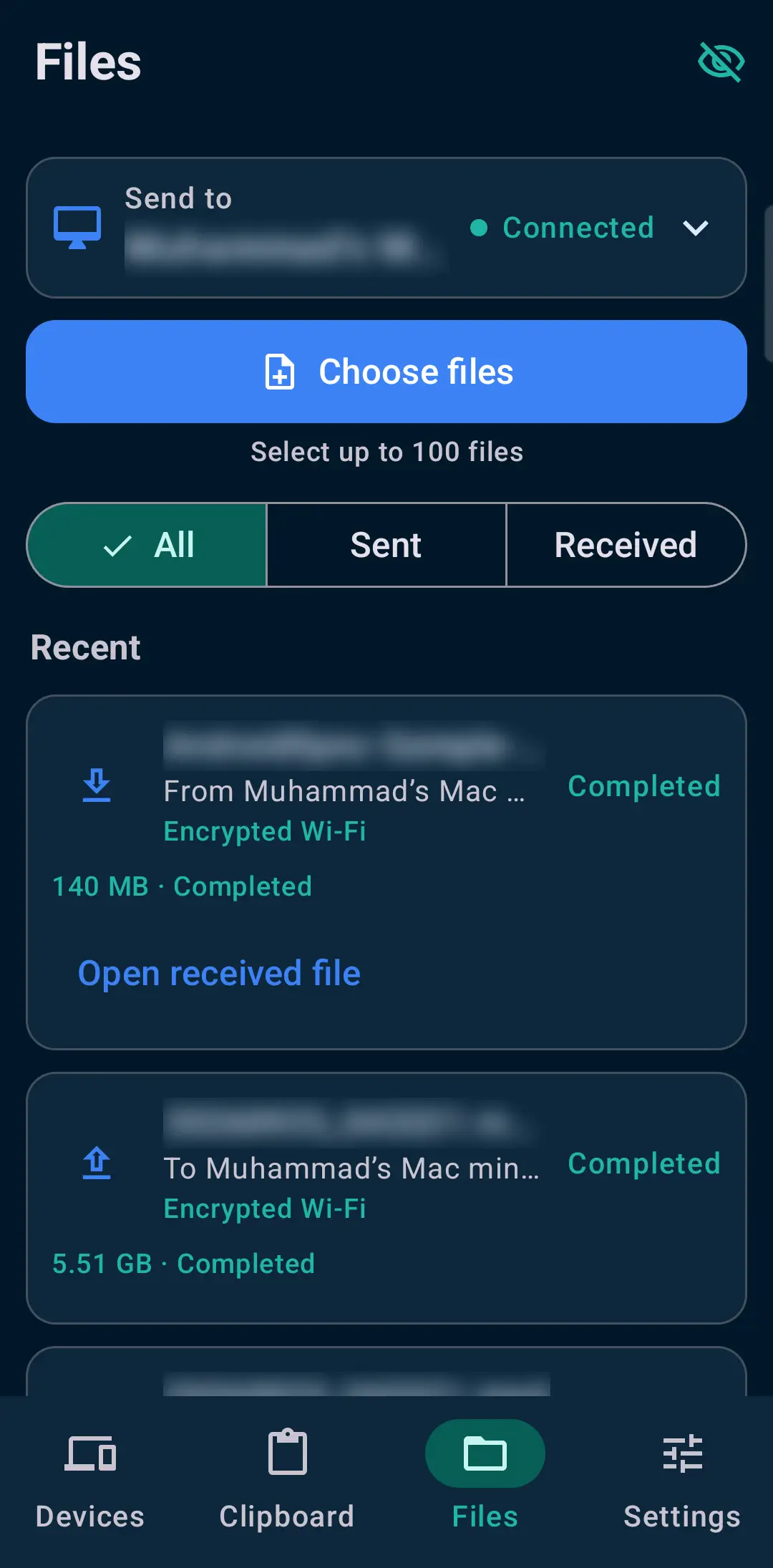
Choose files on Android and send them to a paired Mac. Follow transfer status without leaving the phone app.

  • Send files to a trusted connected device.
  • Review the phone transfer list.
  • Keep the devices on the same local network.

Large selections can take time to prepare and hash before a transfer begins.

The Android Files screen with send controls and transfer status.
The Android Files screen with send controls and transfer status. Click to enlarge ↗

File explorer

Your Android folders, on Mac.

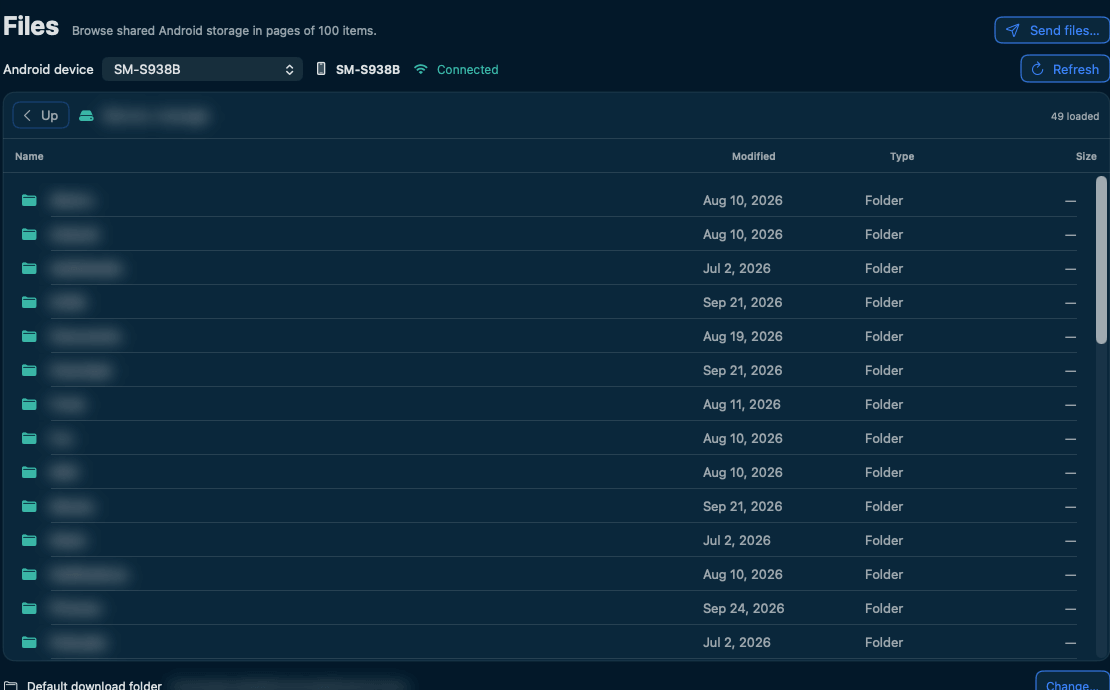
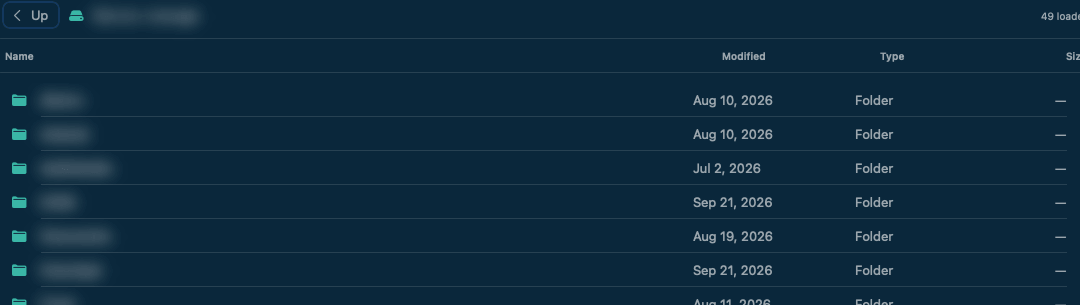
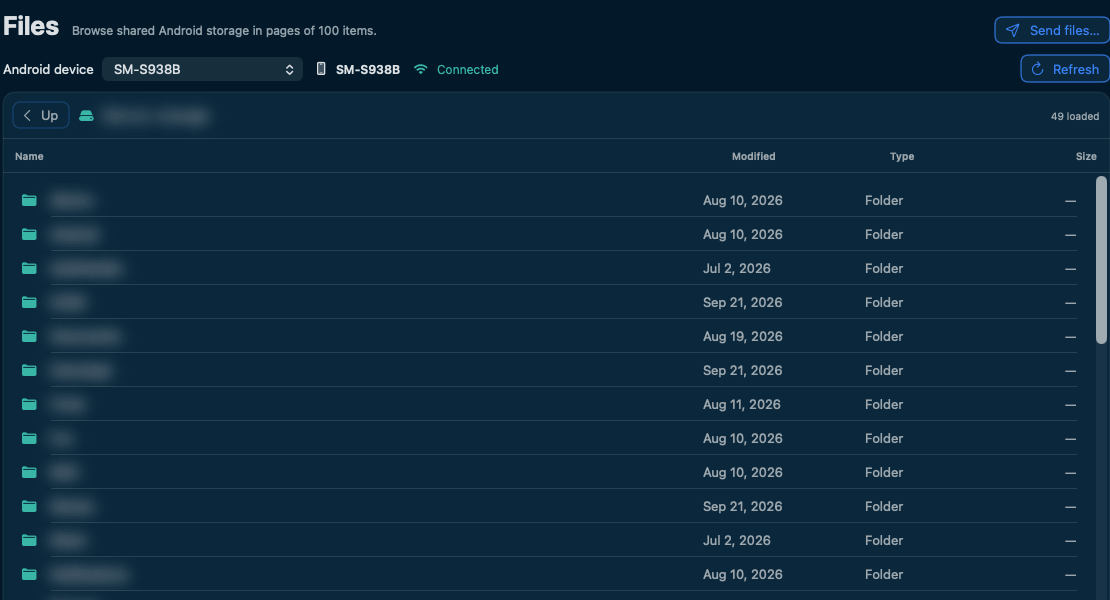
Browse shared Android storage from a familiar list. Open a folder, select files and choose where their downloads should go.

  • Browse folders and file details.
  • Navigate up through the folder hierarchy.
  • Select files or folders as a batch.
  • Choose a default receiving folder.

Requires the full Android variant and Android All files access. Protected app storage is not exposed.

Android shared-storage folders displayed in the Mac file explorer.
Android shared-storage folders displayed in the Mac file explorer. Click to enlarge ↗

Photos and videos

Bring the originals into your project.

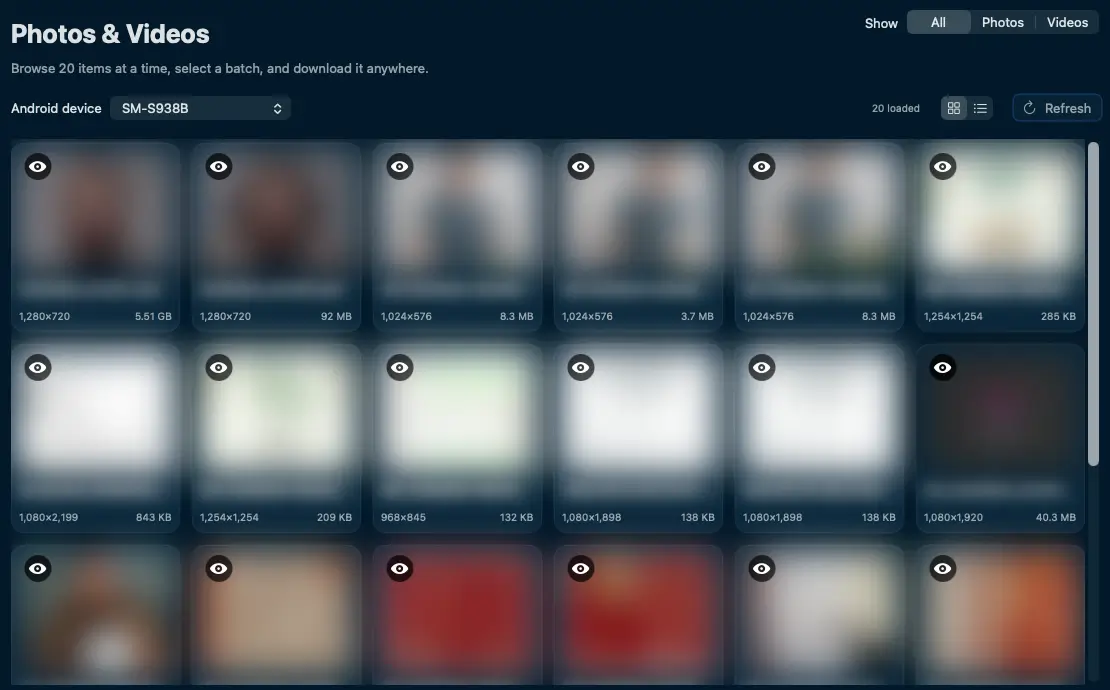
Browse the media on your Android phone from Mac. Find a photo or video, preview it and select the originals you want to download.

  • Filter All, Photos or Videos.
  • Switch between grid and list views.
  • Select a batch and choose a destination.
  • Load more items as you browse.

Android media permissions are required. Large gallery selections are prepared and hashed on the phone before transfer.

The Android photo and video browser on Mac with grid controls and preview buttons.
The Android photo and video browser on Mac with grid controls and preview buttons. Click to enlarge ↗

Transfer modes

Encrypted by default. Your choice, explained.

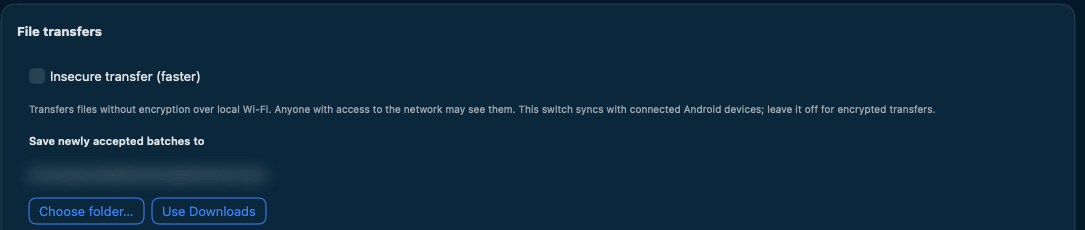
The new binary transfer path avoids Base64 expansion and waiting for a response after every small chunk. An optional local TCP mode is available in Settings.

  • TLS remains the default for file bytes.
  • Durable checkpoints are saved about every 8 MiB.
  • The mode setting syncs across paired devices and survives restarts.
  • Older paired versions can use the original transfer path.

Insecure transfer sends file bytes without encryption. Anyone observing the network can read them. Turning it off cancels active unencrypted batches; restart them to use TLS. It is not guaranteed to be faster.

The actual Insecure transfer setting, left off, with its privacy explanation.
The actual Insecure transfer setting, left off, with its privacy explanation. Click to enlarge ↗
04

A connection you control.

Pair your devices, choose their access, and bring your phone screen closer.

Pairing

Scan once. Get connected.

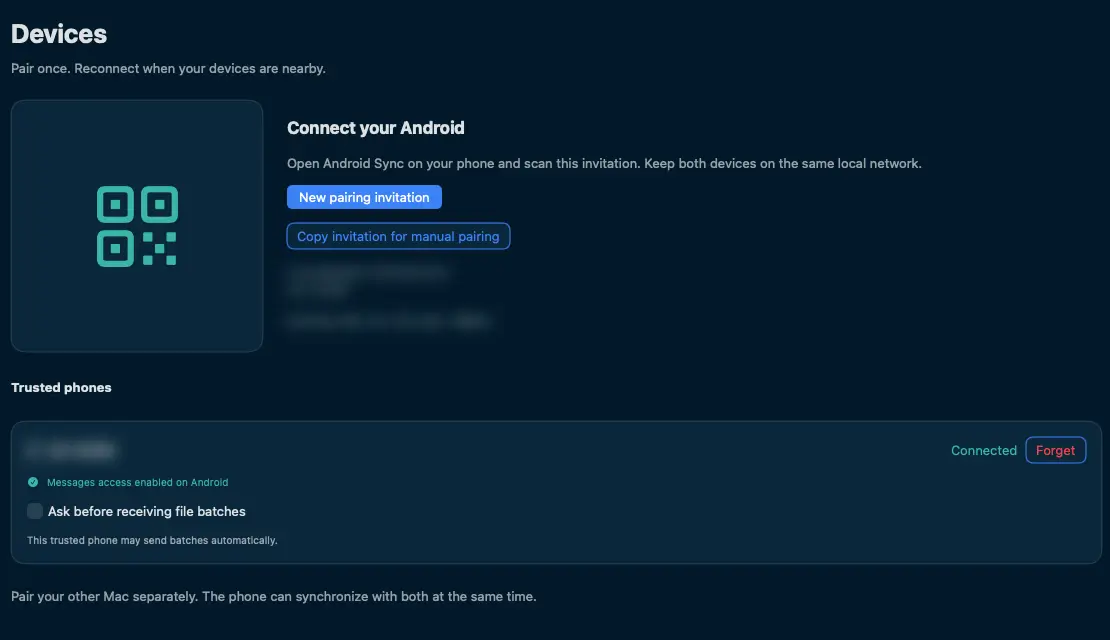
Open Devices on Mac and scan its invitation with the Android camera. Prefer text? The apps also support a manual invitation.

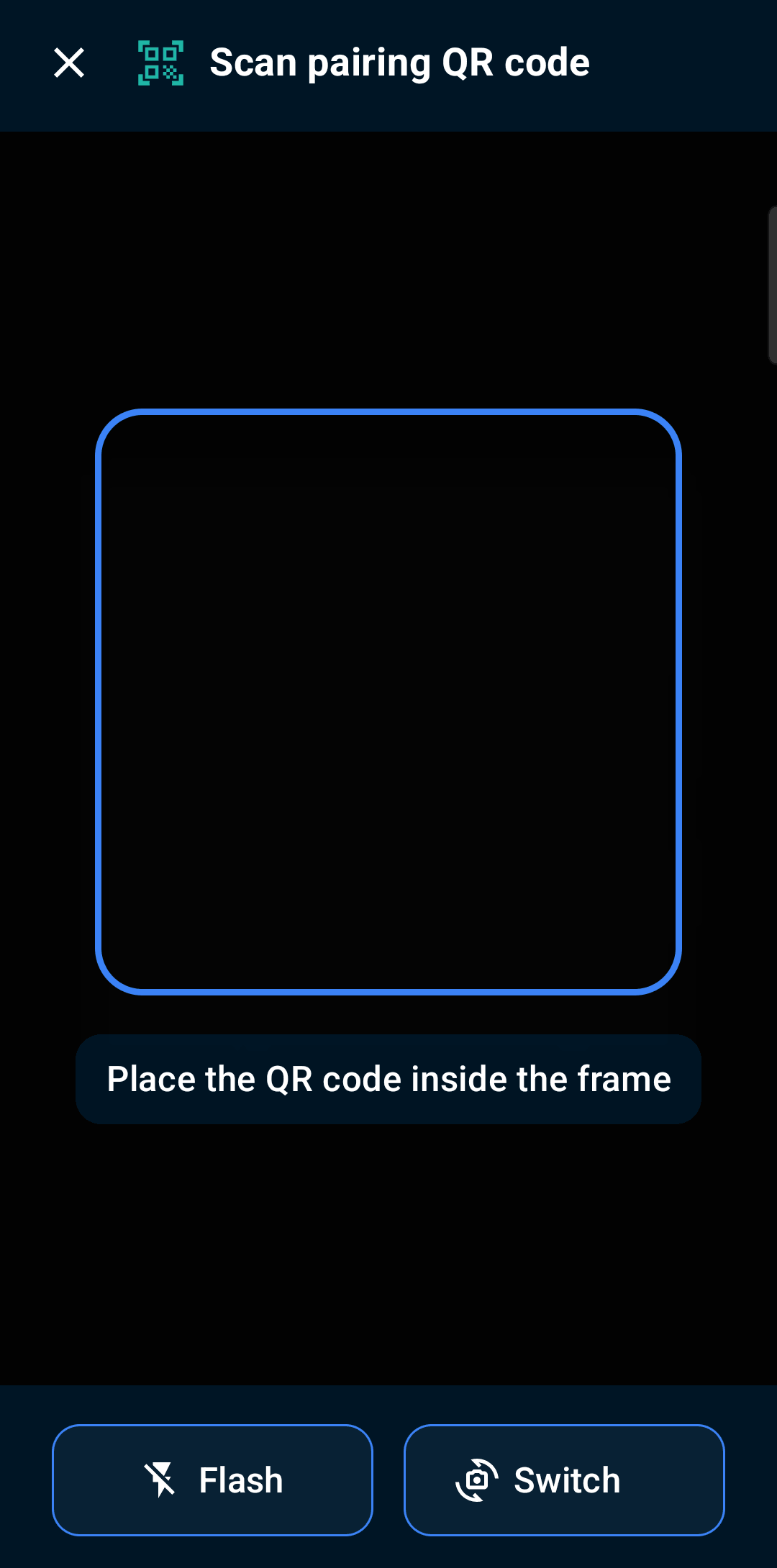
  • Scan a pairing QR code from the Android app.
  • Use flash or switch the scanner camera when needed.
  • Create a fresh invitation on Mac.
  • Pair each additional Mac separately.

Keep both devices on the same private local network. The invitation and device identities must be trusted. The QR is hidden while Mac Privacy Mode is enabled.

The Mac pairing screen with invitation controls and trusted devices.
The Mac pairing screen with invitation controls and trusted devices. Click to enlarge ↗
The real Android QR scanner, with camera viewfinder, flash and camera switch.
The real Android QR scanner, with camera viewfinder, flash and camera switch. Click to enlarge ↗

Per-device permissions

Give each Mac the access it needs.

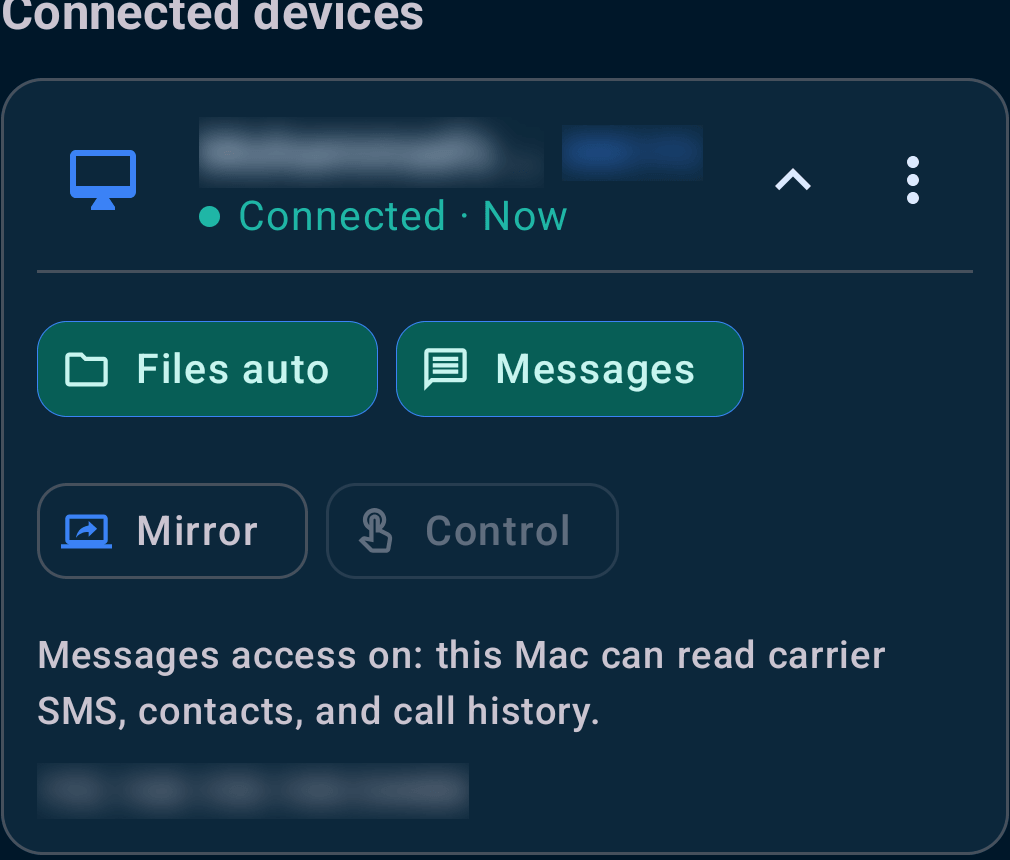
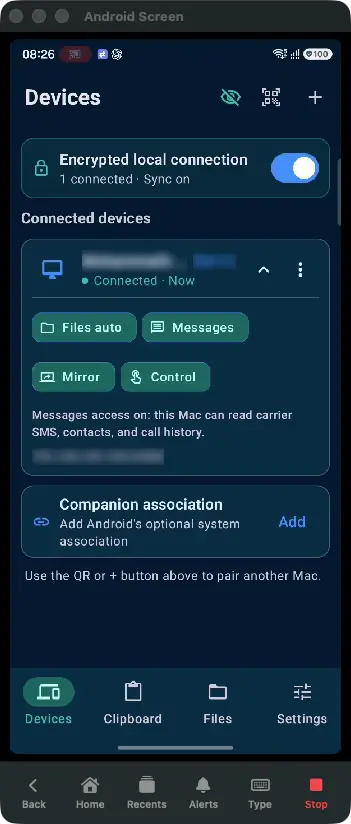
Expand a paired Mac on Android to review its capabilities. File acceptance, Messages, mirroring and control have their own access choices.

  • Review the live connection state.
  • Choose whether file batches can arrive automatically.
  • Grant Messages access to a particular Mac.
  • Manage mirroring and optional remote control separately.

System permissions on Android are also required. A paired device does not automatically gain every capability.

Expanded permissions for a paired Mac in the Android Devices screen.
Expanded permissions for a paired Mac in the Android Devices screen. Click to enlarge ↗

Trusted devices

Keep your trusted list yours.

Pair multiple Macs and manage each connection independently. Device actions stay close to the connection they affect.

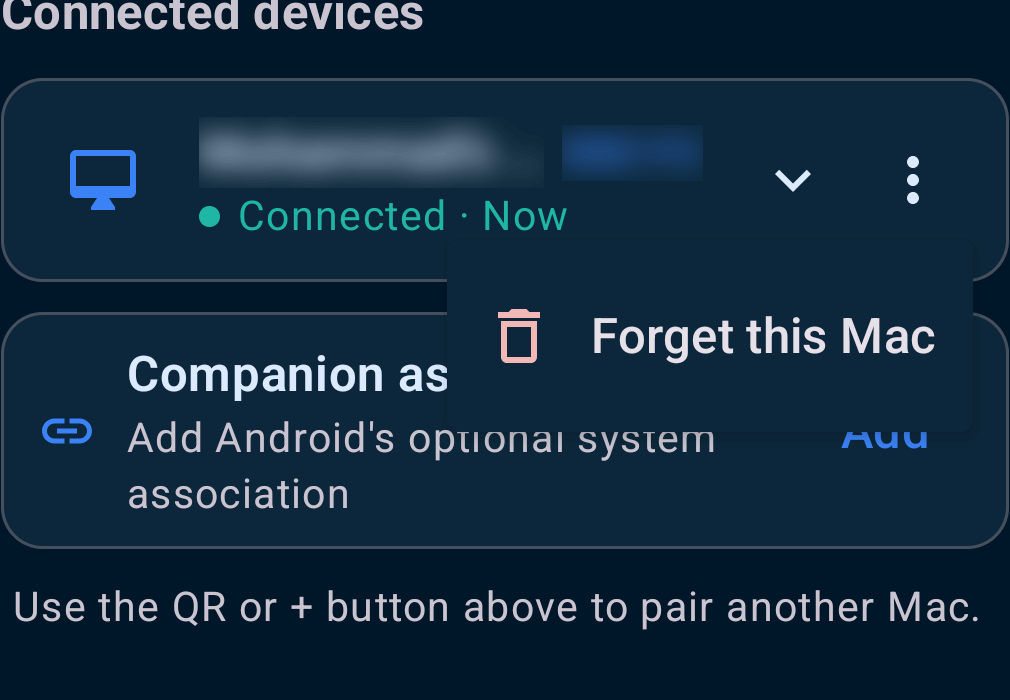
  • See which Mac is connected now.
  • Use the device menu to forget a Mac.
  • Add another connection from the QR or invitation controls.

Forgetting a device revokes its pairing. Wider multi-phone scenarios still need device testing.

The Android device action menu opened on a paired Mac.
The Android device action menu opened on a paired Mac. Click to enlarge ↗

Screen mirroring

Your Android screen, in its own Mac window.

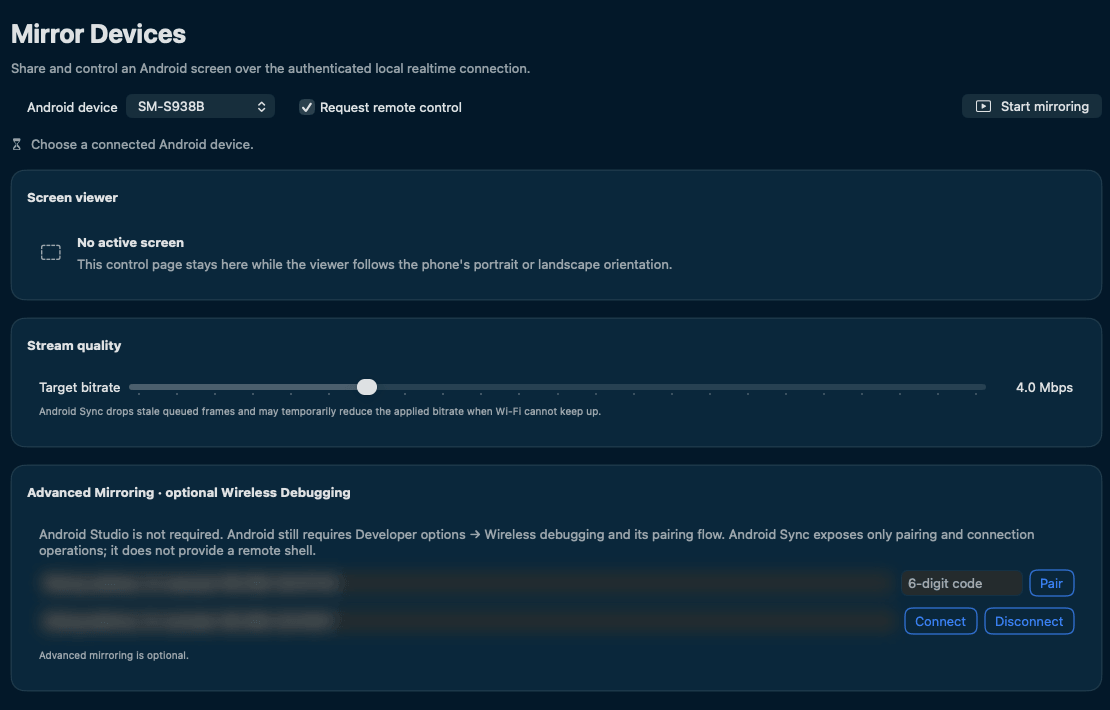
Start a local mirroring session and approve the fresh Android screen-sharing prompt. The viewer follows the phone orientation while the controls remain in the main app.

  • Open the viewer separately from your main workspace.
  • Adjust the target stream bitrate.
  • Version 1.1.2 improves recovery after congestion, missing frames and decoder errors. Update both apps.
  • Stop the session when you are done.
  • Use optional remote control after the required Android grant.

Fresh Android capture consent is required for each session. Protected content may not be captured. Privacy Mode does not cover other apps shown in the mirrored screen.

Mac mirroring controls, target bitrate and optional Advanced Mirroring setup.
Mac mirroring controls, target bitrate and optional Advanced Mirroring setup. Click to enlarge ↗
A live Android screen displayed in the separate Mac viewer.
A live Android screen displayed in the separate Mac viewer. Click to enlarge ↗
05

Make it fit your day.

Small controls for a quieter, more private workspace.

Mac settings

Settle into your own setup.

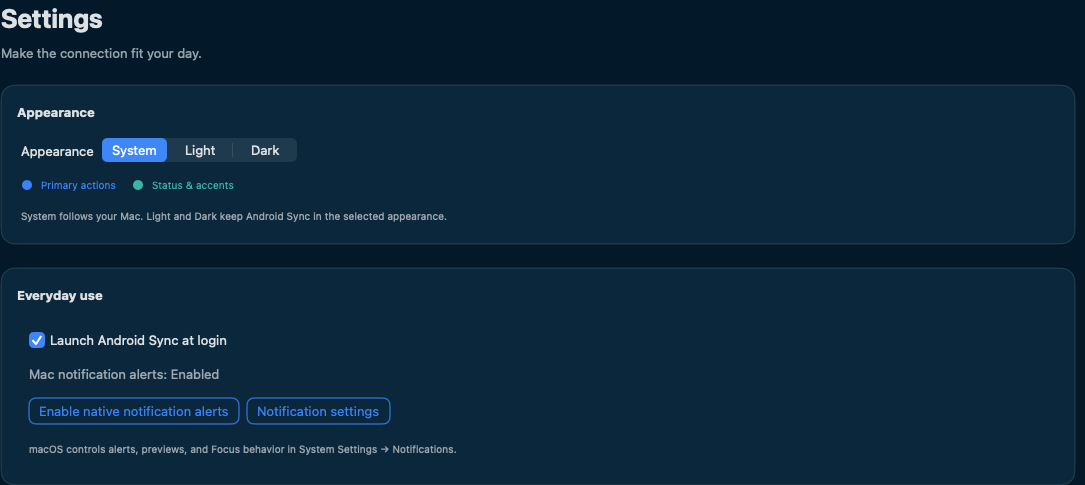
Choose how AndroidSync looks and behaves on your Mac, with the everyday controls together in Settings.

  • Follow the system appearance or choose Light or Dark.
  • Launch AndroidSync at login.
  • Manage native notification alerts.
  • Choose where newly accepted files are saved.
  • Control file completion alerts and their sound.

macOS manages notification permission, previews and Focus behavior in System Settings.

Mac Settings showing appearance, launch at login and notification controls.
Mac Settings showing appearance, launch at login and notification controls. Click to enlarge ↗

Android setup

See what is ready at a glance.

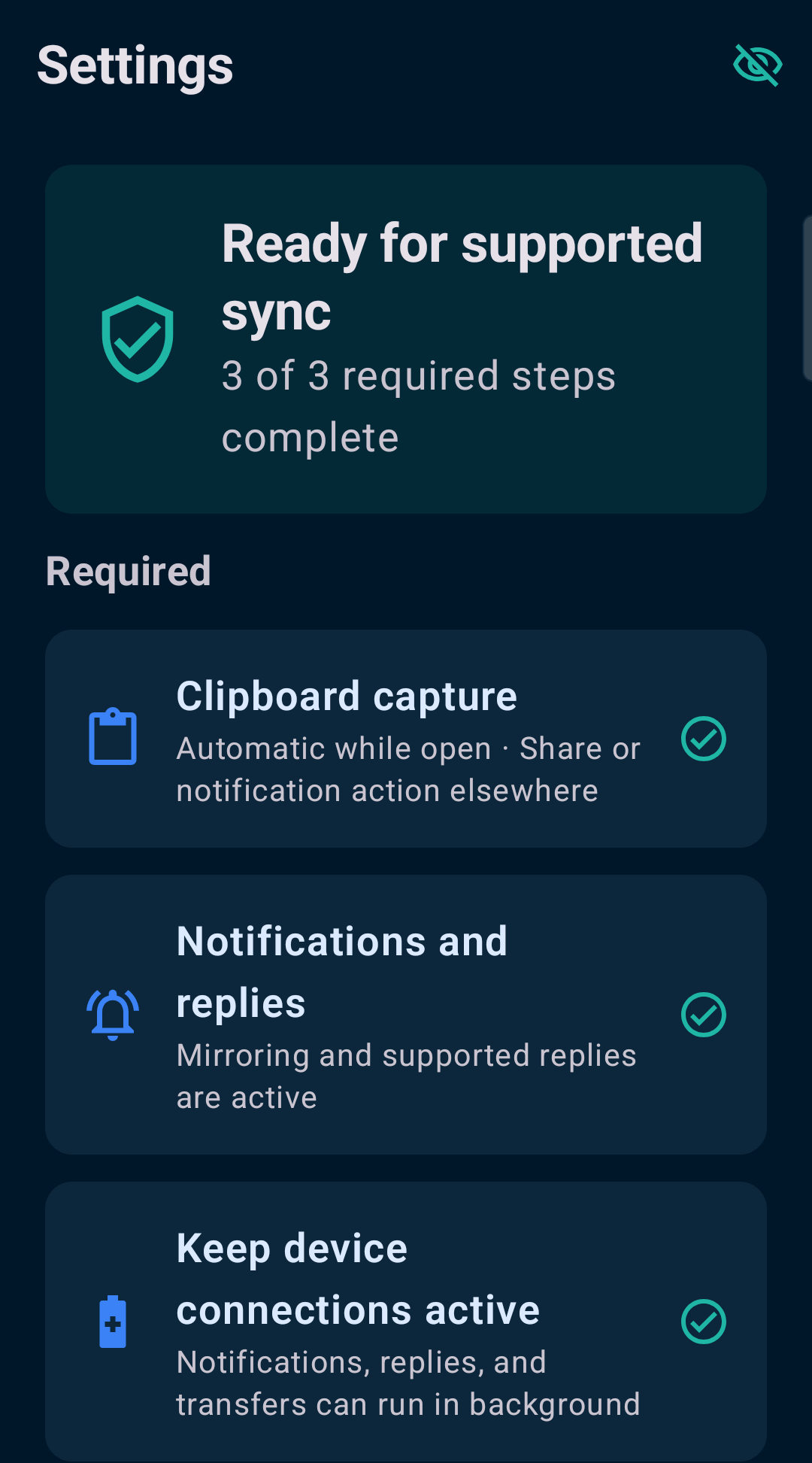
The Android Settings screen groups the permissions and background requirements that make your selected features work.

  • Review required setup steps.
  • Check notification access and supported replies.
  • Review clipboard capture options.
  • Keep device connections active in the background.

Only enable the capabilities you need. Android battery settings and device software can affect background connectivity.

Android Settings showing completed setup steps and background connection guidance.
Android Settings showing completed setup steps and background connection guidance. Click to enlarge ↗

Privacy Mode

Share your work.
Keep details out of view.

Blur sensitive messages, contacts, clipboard content, photos, filenames and pairing details before working in public or recording your screen.

  • Hover over a supported item to reveal it on Mac.
  • Desktop notification previews show the source app and a hidden-content notice.
  • Enable separately on Android and Mac.

Revealed items can appear in captures. Other apps and the mirrored phone screen are not covered.

Explore the privacy use case ↗
Contacts blurred by the Mac app’s Privacy Mode.
Contacts blurred by the Mac app’s Privacy Mode. Click to enlarge ↗

A few things to know.

Local by design

No AndroidSync account or cloud relay. Pairing and control use authenticated TLS. Optional unencrypted file transfer is off by default.

Honest about compatibility

Android 12+ and macOS 14+. Optional SMS, storage and control features require the full Android build. Permissions and device behavior affect availability.

Built and checked

Version 1.1 compiled for both Android variants and Intel and Apple Silicon Macs. 70 unit tests passed. These checks do not guarantee every device or transfer speed.

Read the help guide · Read the changelog

Bring your devices together.

Android and Mac. Free for personal use.

Download AndroidSync